Main Table
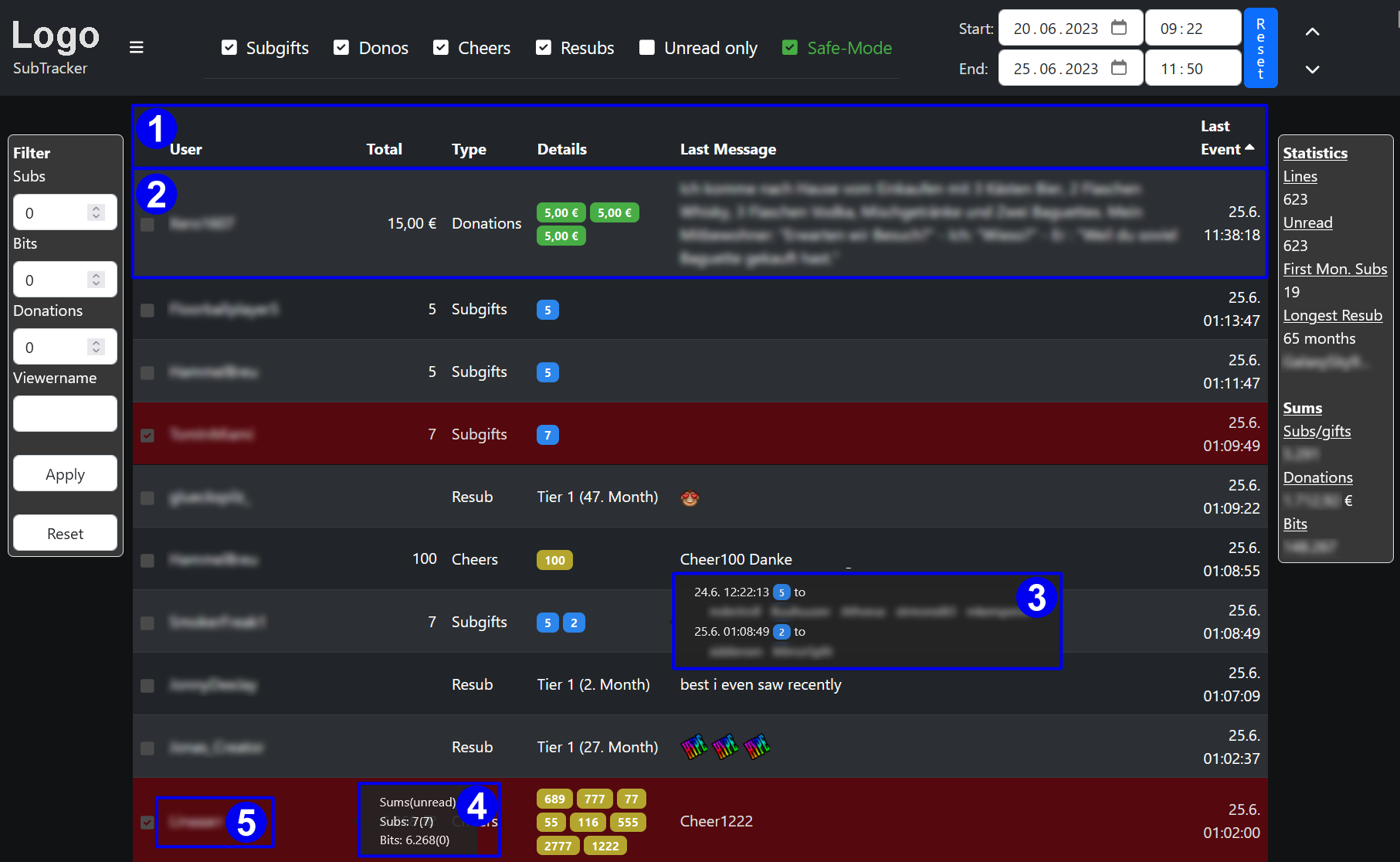
The main table shows all details of support:
-
Table Header
The table header shows the different columns and allow to sort the table by clicking the column name.
The colums are:- User: Shows the name of the user submitting support (some donation providers allow to specify username as free text)
- Total: Displays the sum of all support shown in a single line (see 2. ). In case the main filter selects only resubs this line changes to "month". You can than sort the table by resub month.
- Type: The type of support is shown in this column. Currently this can be cheers, donations, resubs and subgifts
- Details: Lists all single support submissions collected in one line (see 2. ). Colors used are:
- Yellow: Cheers
- Green: Donations
- Red: Donations specified as monthly recurring (also marked with (M) behind the amount)
- Blue: Subgifts
- White Text: Resubs showing tier and resub month
- Last Message: Shows the text send with the last support that is collected in a single line
- Last Event: Timestamp of the last support event shown in a single line
-
Table Line
One of the major concepts of Subtracker is to collect multiple support of a single user into one line shown. In detail: Each support of a user is collected in one line as long as it is the same type of support and it is not yet marked as done(read).
Marking a line as done will always start a new line for the user with the next support of the same type being donated.
Lines shown in gray are not honored/read so far and lines in red are done. The checkmark in front of each line is used to mark a line done. By clicking again a line can be marked undone again. Be aware that this will merge this line with other support of the same user and type if there is another matching undone line -
Details Tooltip
By hovering over the details column of a line a tooltip shows each support collected in this line separately including the timestamp and the text provided by the user -
User Tooltip
Moving the mouse over a username opens a tooltip showing all support spend by a user during the timeframe specified for the whole table. The amount not yet honored/read is displayed in parentheses -
User Filter
By double clicking a username the filters are changed so that only support of this user is shown, including all types of donations read or unread during the timeframe specified. Double click again resets filters back to whatever they where before.